Start a 14-day trial
Import & migration

Bring your projects over, and check them before they land

Export a project from the tool you use today and upload the file. DeliverGoals reads it, shows you exactly what it found, lets you match the people in it to your colleagues, and creates the project only when you say so.

Step 1

Upload the export

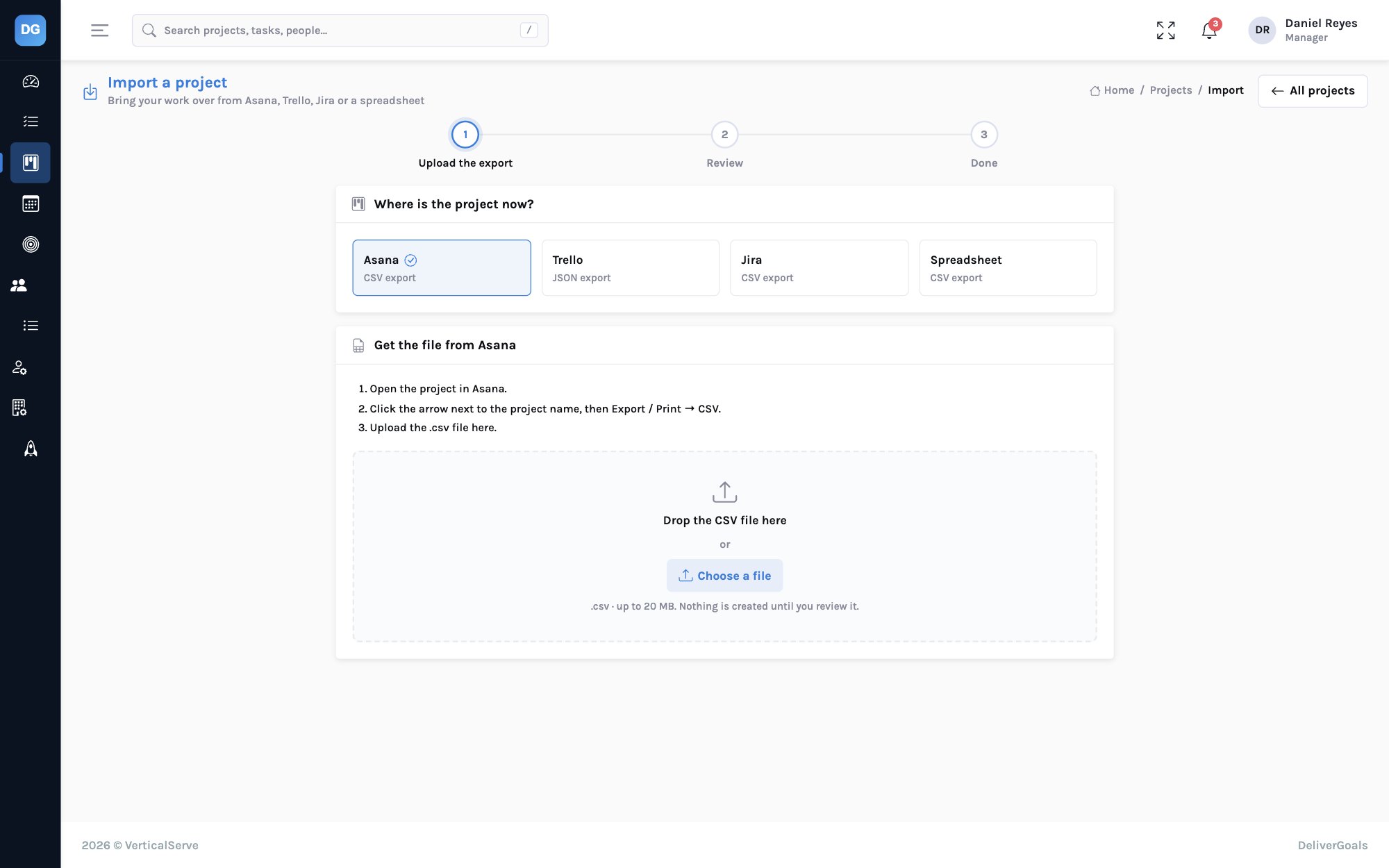
Choose where the project lives today. The page shows how to export it from that tool:

  • Asana: the project’s CSV export
  • Trello: the board’s JSON export
  • Jira: an issue search exported as CSV (all fields)
  • Any spreadsheet: a CSV with a Name or Title column, from Excel, Google Sheets or another tool

Up to 20 MB and 5,000 tasks per file. If you pick the wrong tool, the page says which one the file came from.
app.delivergoals.com/projects/import
Import a project, step 1 of 3: four choices for where the project is now (Asana, CSV export, selected; Trello, JSON export; Jira, CSV export; Spreadsheet, CSV export), then Get the file from Asana with three numbered steps (open the project, click the arrow next to its name and choose Export / Print then CSV, upload the file) and a drop area with a Choose a file button, .csv up to 20 MB, nothing created until you review it.
Step one: say where the project lives today. The page shows how to export it from that tool, then you drop the file in.
Step 2

Review what was read

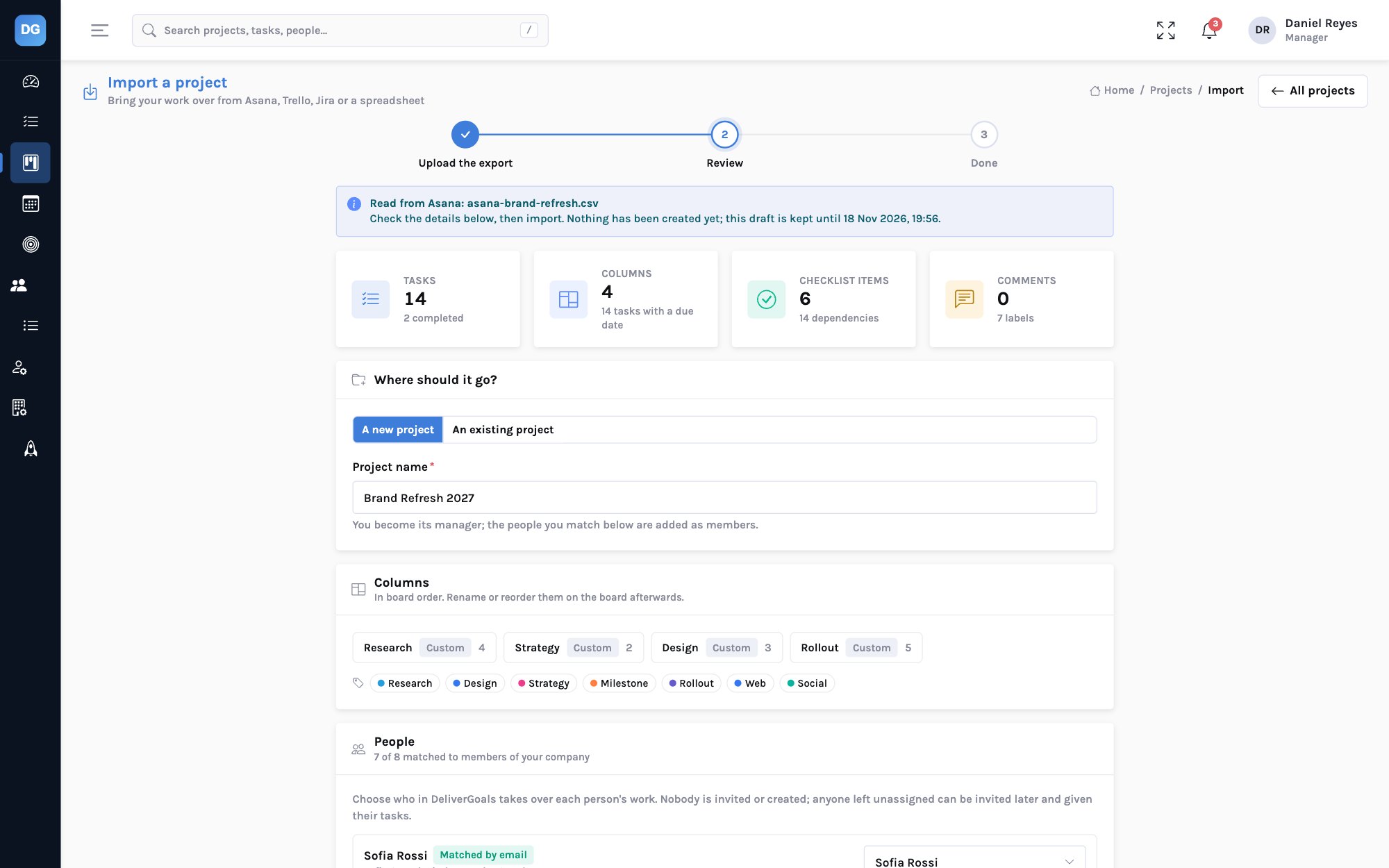
Before anything is created you see the counts, the columns in board order, the labels, anything that will not come across, and the first tasks as they will arrive. Choose a new project or add to one you already manage.
app.delivergoals.com · Import · Review
Import review for asana-brand-refresh.csv: a note that nothing has been created yet and the draft is kept until the next day; tiles for 14 tasks (2 completed), 4 columns (14 with a due date), 6 checklist items (14 dependencies) and 0 comments (7 labels); Where should it go? with A new project selected and the name Brand Refresh 2027; Columns Research 4, Strategy 2, Design 3 and Rollout 5, and labels Research, Design, Strategy, Milestone, Rollout, Web and Social.
Step two: what was read from the file, before anything is created. Choose a new project or one you already manage, and check the columns and labels.
People

Match people, never invite them

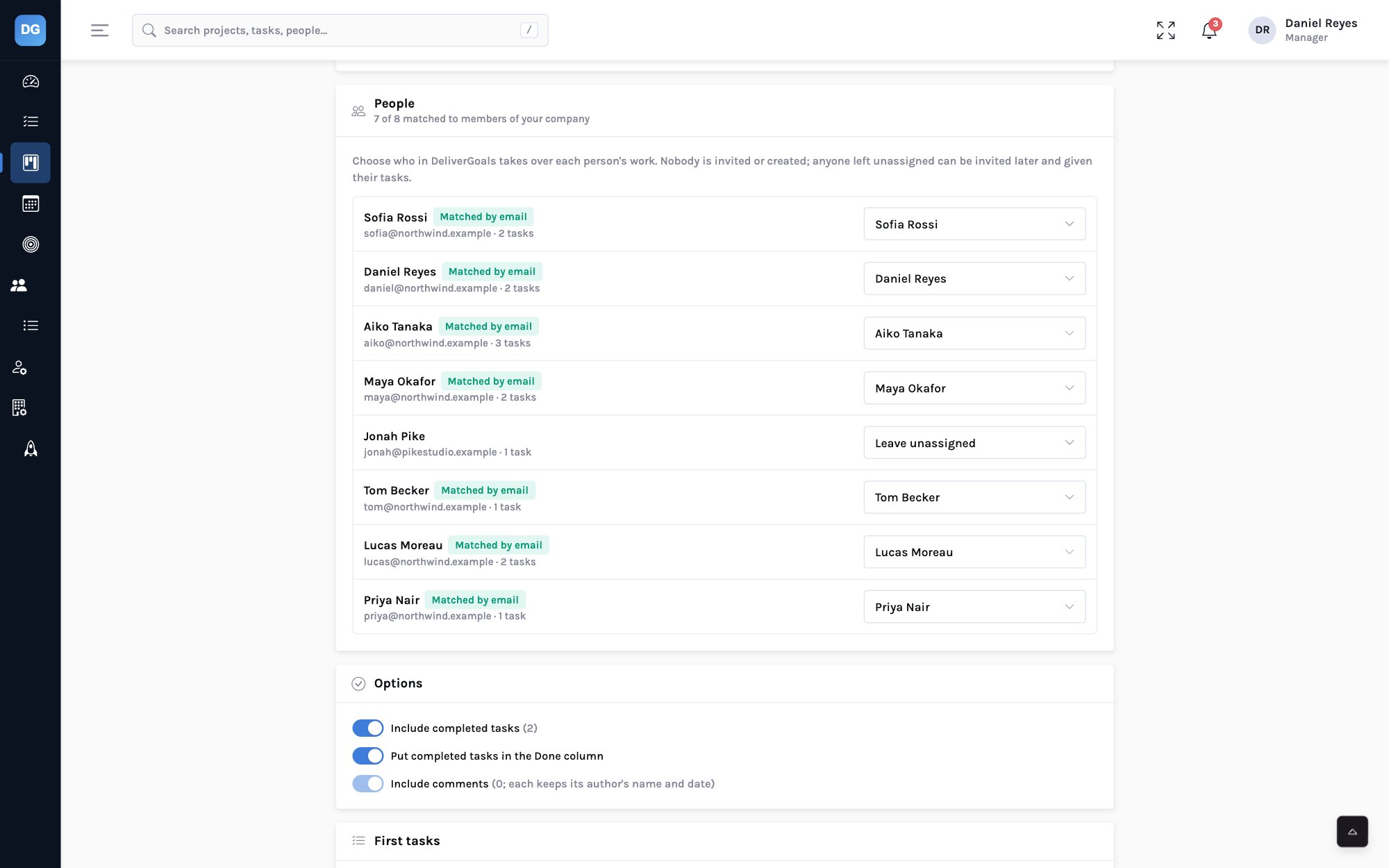
Each person in the file is matched to a colleague by email, or by name when only one person has it. Change any match, or leave work unassigned. The importer never creates accounts or sends invitations; matched people are added to the project and told about their open tasks.
app.delivergoals.com · Import · People
The People section of the import review: 7 of 8 matched to members of your company. Sofia Rossi, Daniel Reyes, Aiko Tanaka, Maya Okafor, Tom Becker, Lucas Moreau and Priya Nair each show Matched by email with their .example address, task count and a drop-down set to their own name; Jonah Pike, jonah@pikestudio.example, 1 task, is set to Leave unassigned. Below, Options: include completed tasks (2), put completed tasks in the Done column, include comments.
People in the file are matched to colleagues by email. Nobody is invited or created: the outside freelancer stays unassigned until you decide.
Step 3

One go, then the board

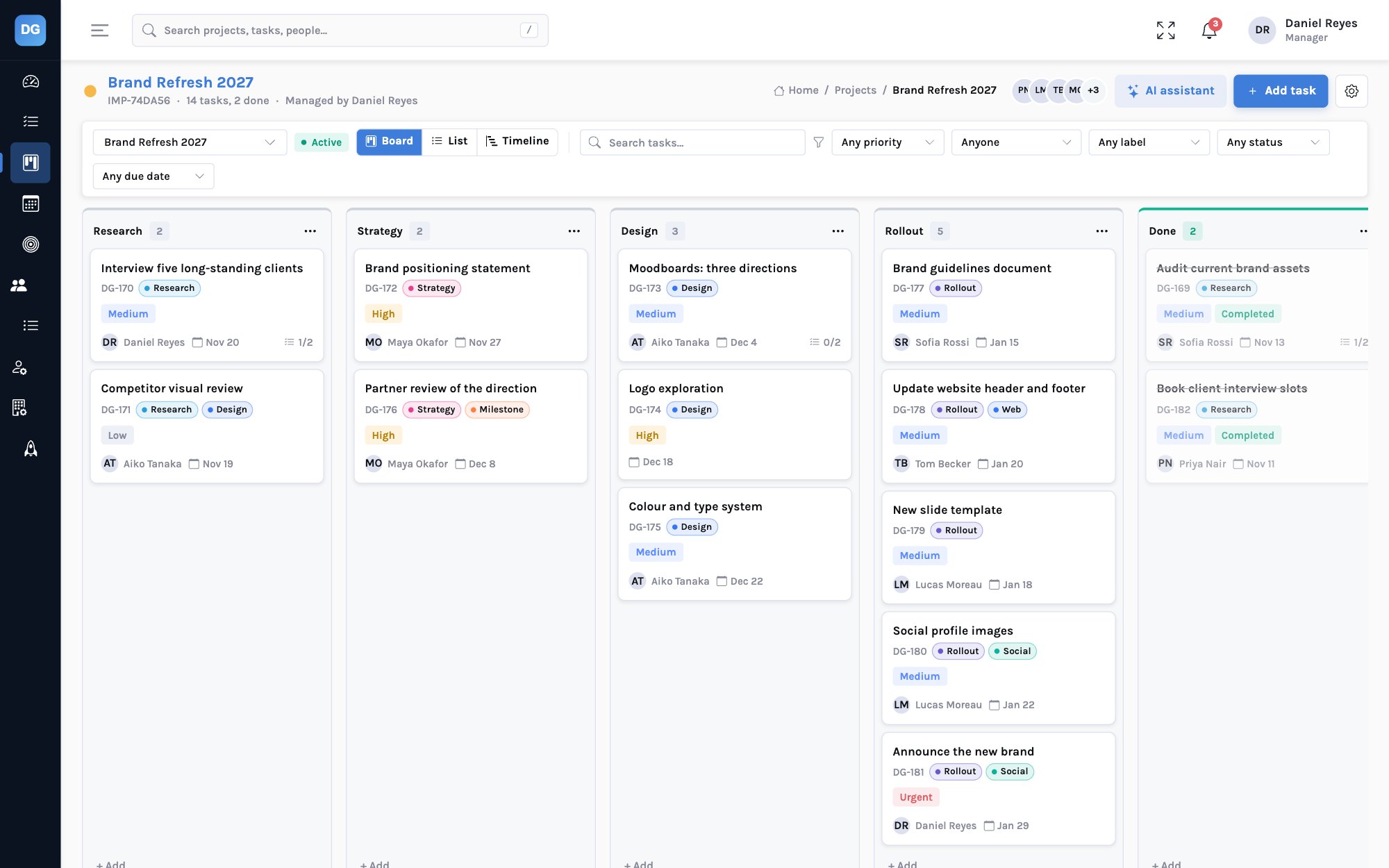
Everything is created in one transaction, so a failure creates nothing. You get a summary, a note about any work that still needs an owner, and the new board. Dates arrive on the timeline straight away.
app.delivergoals.com · Brand Refresh 2027 · Board
The board created by the import: Brand Refresh 2027, 14 tasks, 2 done, managed by Daniel Reyes, with columns Research 2, Strategy 2, Design 3, Rollout 5 and Done 2. Cards keep their Asana tags as labels, priorities, owners and due dates, for example Interview five long-standing clients (Research, Medium, Daniel Reyes, Nov 20, 1 of 2 subtasks), Partner review of the direction (Strategy and Milestone labels, High, Maya Okafor, Dec 8), Logo exploration with no owner, and Announce the new brand (Urgent, Daniel Reyes, Jan 29); the two completed tasks are in Done.
The imported project as a board: sections became columns, tags became labels, and completed tasks went to Done.
What comes across

From each tool

Asana (CSV)Trello (JSON)Jira (CSV)Spreadsheet (CSV)
ColumnsSectionsLists, in orderStatuses, in workflow orderStatus or Column
OwnerAssignee, by emailFirst member, by nameAssignee, by nameOwner or Assignee
DatesStart and dueStart and dueStart and dueStart, Due
LabelsTagsLabelsLabels, issue type, epicTags or Labels
PriorityA Priority fieldA label named like a priorityPriorityPriority
ChecklistSubtasksChecklistsSub-tasksParent column
DependenciesBlocked ByNot in TrelloBlocks linksBlocked by column
CommentsNot in Asana’s CSVFrom the exportComment columns—
AttachmentsNot copiedNot copiedNot copied—
Sprints, automations, custom fieldsNot carriedNot carriedNot carriedNot carried
Safe by design

What the importer will not do

Create anything unreviewed

The upload is a draft. Nothing exists in the workspace until you press Import, and each draft can be imported once.

Invite or create people

People are mapped only to active members of your own company, and the mapping is checked again on import.

Fetch links or files

Links and attachments in an export are never followed or downloaded, so a file cannot make the server call anywhere.

Run what is in the file

Text is stored as text. Spreadsheet formulas stay inert, and CSV exports from DeliverGoals neutralise them.

Keep your old data

The draft is deleted after it is imported, discarded, or 24 hours old. Only the counts stay as history.

Allow floods

Only admins and managers can import, with a per-hour and per-day allowance and a 20 MB, 5,000-task ceiling.

How it works

From your old tool to a board

From your old tool to a board 1ExportCSV from Asana orJira, JSON fromTrello, or any taskspreadsheet.2ReadColumns, tasks,owners, dates, labelsand links betweentasks.3ReviewCounts, columns,first tasks andanything that willnot come across.4Match peopleTo colleagues byemail or name, orleave unassigned.5ImportOne transaction; theboard, list andtimeline are ready.A one-time import from a file. There is no ongoing sync with the old tool.From your old tool to a board 1ExportCSV from Asana or Jira, JSON fromTrello, or any task spreadsheet.2ReadColumns, tasks, owners, dates,labels and links between tasks.3ReviewCounts, columns, first tasks andanything that will not comeacross.4Match peopleTo colleagues by email or name, orleave unassigned.5ImportOne transaction; the board, listand timeline are ready.A one-time import from a file. Thereis no ongoing sync with the old tool.
Import into a new project, or add to one you manage: columns with the same name are reused.
Questions it answers

What you can find out

Each answer is on a screen you can open.

What will this file turn into?The review step, before anything is created
Who in our company gets this work?The People list, matched by email or name
What did not come across?The Worth knowing list on the review
Can I add these tasks to a project we already have?Choose An existing project you manage
Which imports have we done?Recent imports, on the import page
Who can import?Admins and managers
In practice

What teams use it for

Leave Asana for one team

Import its active projects in an afternoon; archive the rest in Asana.

Turn a Trello board into a plan

Lists become columns and due dates land on a timeline.

Move a Kanban team off Jira

Statuses become columns; sub-tasks become checklists; epics become labels.

Where it stops. Import is a one-time copy from a file, not a live connection: nothing syncs back. Attachments, sprints, automations, workflows, permissions and custom fields (other than priority and points) do not come across. Trello and Jira exports carry names rather than email addresses, so people are matched by name. Up to 20 MB and 5,000 tasks per file.

Bring one project over

Start a trial, export your busiest project from the tool you use today, and look at it on a board in ten minutes.

Start a 14-day trial