Trello is where many teams start, and a board that worked for five people starts to creak at fifteen: no dates across boards, no view of who is overloaded, no daily check-in. Moving does not have to mean retyping. This post takes one Trello board into DeliverGoals, explains what each part of a Trello card becomes, and is specific about what the export leaves out.
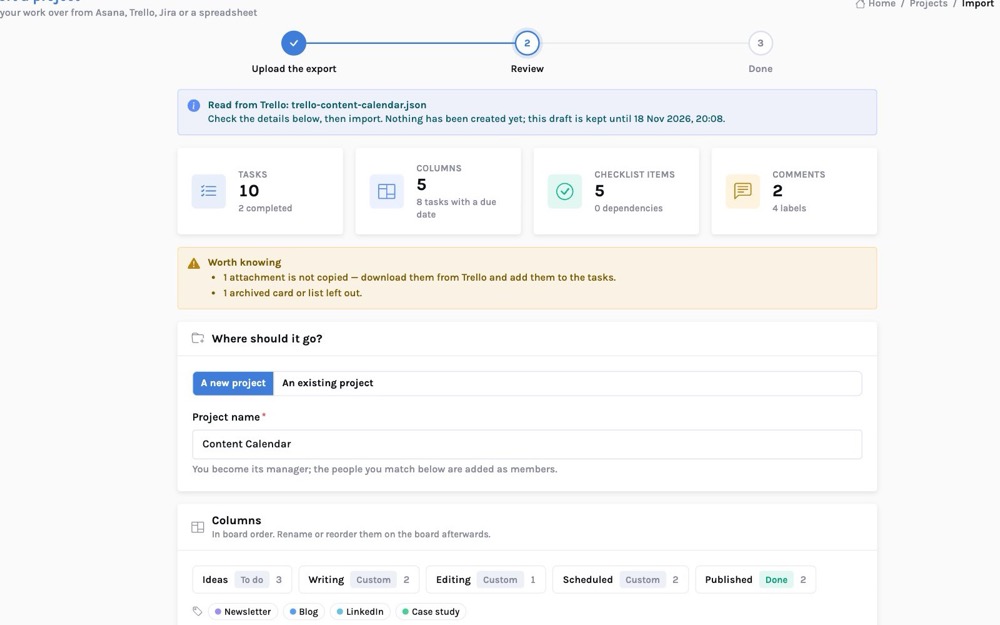
The example is Content Calendar, a ten-card board written for the Northwind Studio demo workspace. Northwind Studio and its people are fictional; the board uses the demo team’s names plus one photographer, Ren Ito, who is not in the workspace. The screen below is DeliverGoals as it runs today.
Before you start
- One board per import. Each Trello board becomes one DeliverGoals project, or is added to one you already manage.
- Invite your people first, and check their names. Trello’s export has no email addresses, so the importer matches members by full name. A name that is spelled the same in both places, and belongs to exactly one person in your company, is matched for you. Anyone else you choose by hand or leave unassigned.
- Be an admin or a manager. Members cannot import.
- Archive what you will not need. Archived lists and cards are left out on purpose, and the review tells you how many.
Step 1: export the board from Trello
Open the board, open the board menu (the … button), and choose Print, export and share → Export as JSON. Trello opens the board’s data in a browser tab. Save that page as a file ending in .json, then upload it in DeliverGoals under Projects → Import → Trello. The file may be up to 20 MB and 5,000 cards.
What maps to what
| In Trello | In DeliverGoals | Carried? |
|---|---|---|
| Open lists, in board order | Columns, in the same order | Yes |
| Archived lists and cards | Left out, and counted in the review | Counted |
| Card name and description | Task title and description | Yes |
| Labels | Labels with a matching colour; an unnamed label takes its colour as its name | Yes |
| A label named like a priority (High priority, Urgent, P1…) | Sets the task’s priority instead of becoming a label | Yes |
| Members on a card | The first member becomes the owner; others are not carried | First only |
| Checklists | Checklist items; with several checklists, each item is prefixed with its checklist’s name | Yes |
| Comments | Comments with the author’s name and date, from the export’s activity | Recent ones |
| Start and due dates | Start and due dates | Yes |
| Due complete, or a list such as Done or Published | Completed | Yes |
| Attachments | Not copied; the export holds only links into Trello | No |
| Power-Ups and custom fields | Not carried | No |
Two rows need a word. Comments: Trello writes comments into the export as part of the board’s activity, and the export holds only the latest 1,000 actions. On a busy, old board the oldest comments may be missing; the review warns you when the limit was reached. Members: DeliverGoals has one owner per task. If your team puts three faces on every card, decide who owns each one before or after the import.
Step 2: review what was read
For Content Calendar the review shows 10 cards (2 completed), 5 columns, 5 checklist items, 2 comments and 4 labels. Two notes appear under Worth knowing: one attachment was not copied, and one archived card was left out. Both are true of the board, and both are things you would want to know before telling the team the move is done.
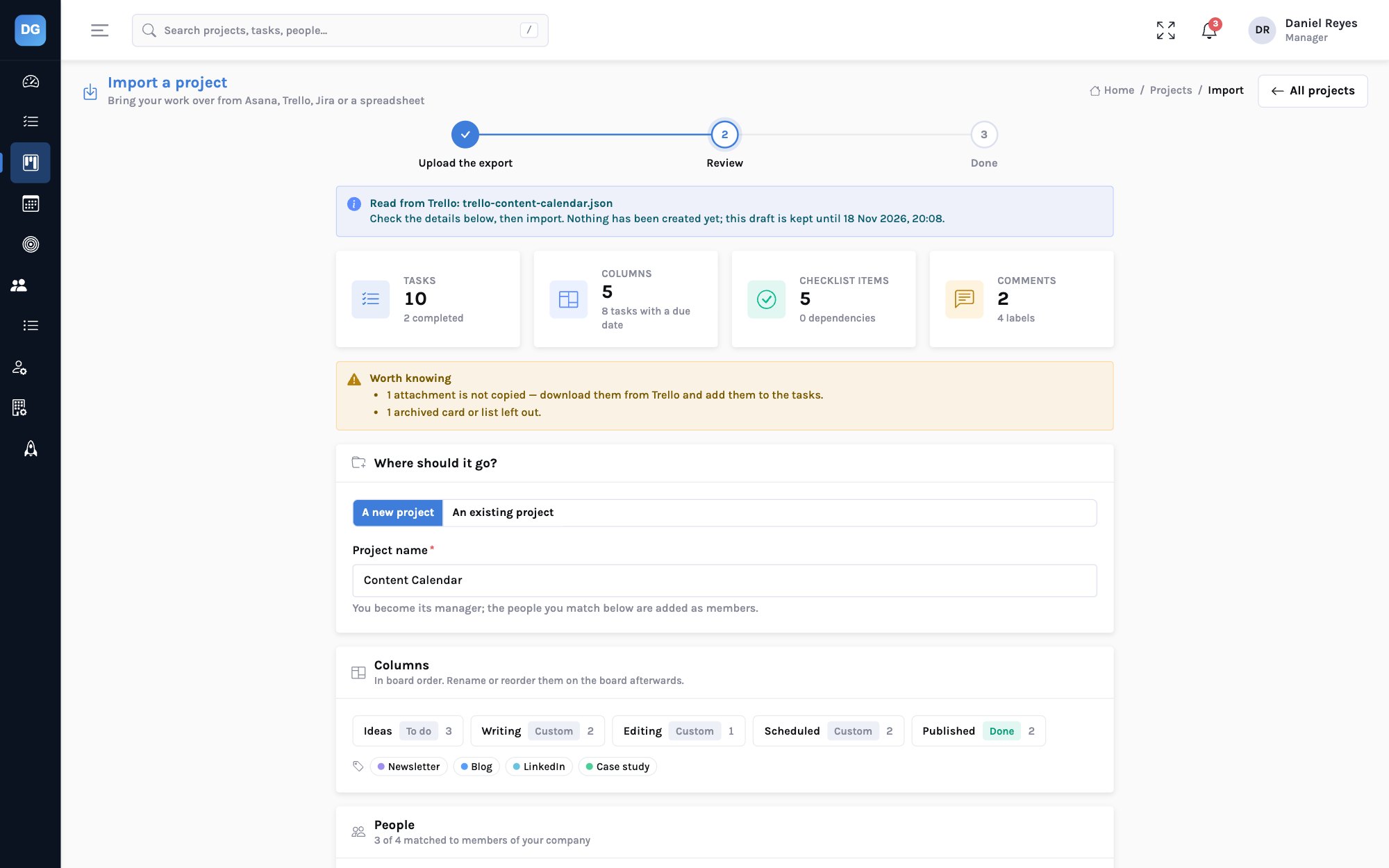
The columns keep Trello’s names. DeliverGoals also works out what each one means, so that completed work and late work are counted properly: Ideas is a to-do column and Published is a done column. You can rename or reorder them on the board afterwards.
The two cards labelled High priority arrive as high-priority tasks, and the label itself is not created. The newsletter, blog, LinkedIn and case-study labels come across as labels with their Trello colours.
Match the people
Lucas Moreau, Aiko Tanaka and Priya Nair are matched by name. Ren Ito, the photographer, is not in the workspace and stays unassigned until you invite him or give the card to someone else. Matched people are added to the project and get one notification each for their open cards. Nobody is invited or created by the import.
Step 3: import
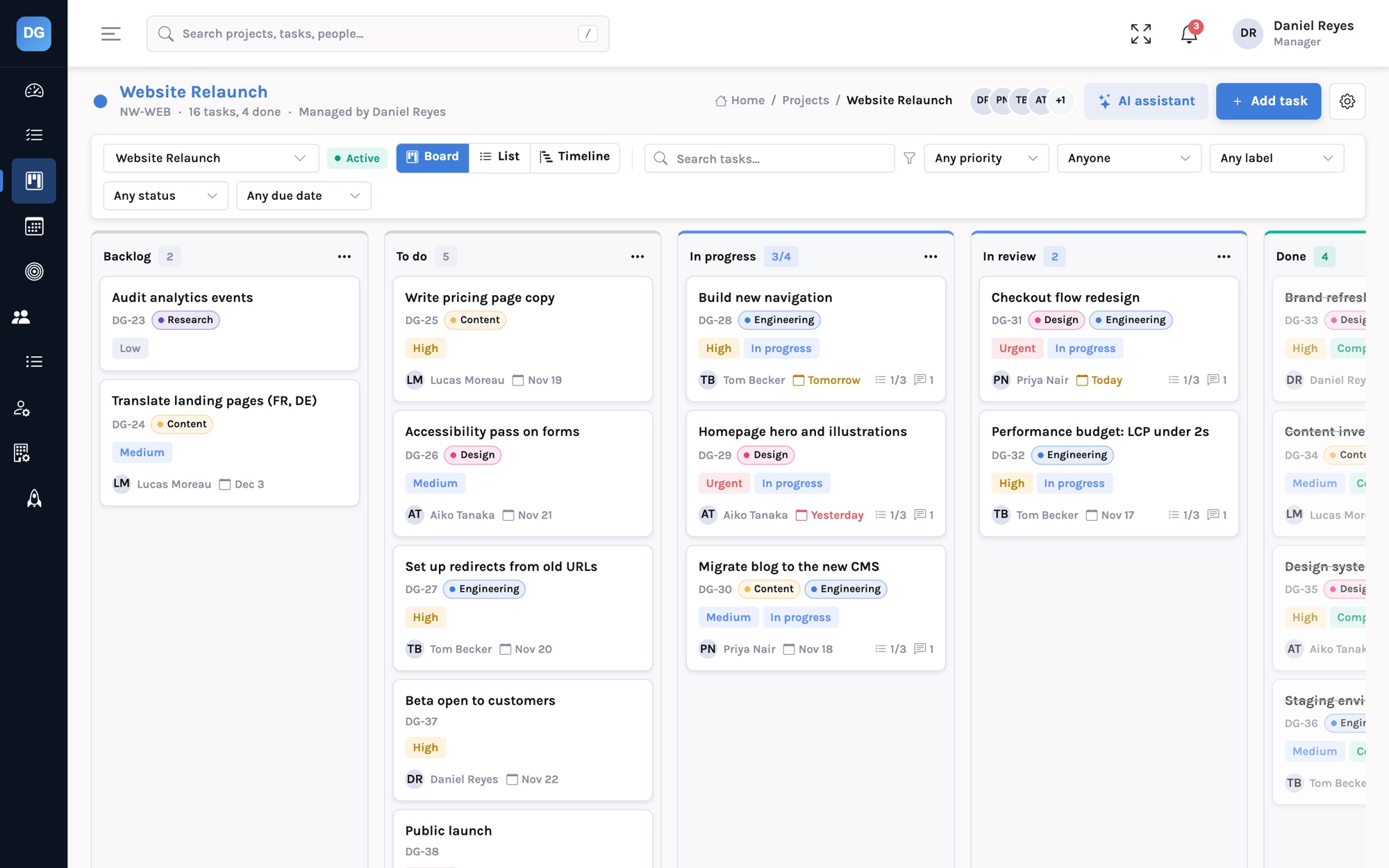
Press Import. The project, columns, labels, tasks, checklists and comments are created together, or not at all. You become the project’s manager. The case-study card arrives with its three checklist items (one ticked) and both comments, each starting with its author’s name and date and a note that it came from Trello.
After the import
- Invite the people who did not match, then assign their cards from the project’s List view, where several rows can be changed at once.
- Move the attachments that matter. The review told you how many there were.
- Check the timeline and the calendar. Cards without dates will not appear there; that is a good prompt to give them one.
- Close the Trello board. Close it or make it read-only, so nobody keeps updating the old copy.
What the importer does to keep you safe
- Nothing is created until you review it.
- People are never invited or created; they are matched to existing colleagues or left unassigned.
- Links in the export are never fetched, including attachment links. Text is stored as text.
- The uploaded draft is deleted once imported, discarded, or 24 hours old.
- Only admins and managers can import, and only into projects they manage.
What the Trello import does not do
It reads a board’s JSON export; it does not connect to your Trello account. Attachments are not copied. Only the first member of a card becomes its owner. Power-Ups, custom fields, automation (Butler) and stickers are not carried. Comments older than the export’s last 1,000 actions are not in the file. Archived lists and cards are left out.
Moving several boards or a whole team? A one-week migration playbook sets out the order. The importer is described on Import from Asana, Trello and Jira; there are also guides to moving from Asana and moving from Jira.