Moving a team’s work from one tool to another is not hard because of the data. A project export is a file, and a file can be read. It is hard because of people: the week where two boards exist, and each person decides privately which one is real. A good migration is mostly about shortening that week.
This playbook uses the DeliverGoals importer, which reads an Asana CSV, a Trello board’s JSON, a Jira CSV, or any task spreadsheet saved as CSV. The worked example is the Northwind Studio demo workspace, which is fictional: seven people, a handful of projects, and a manager, Daniel Reyes, who has been asked to move everything over before the new quarter.
The path one project takes
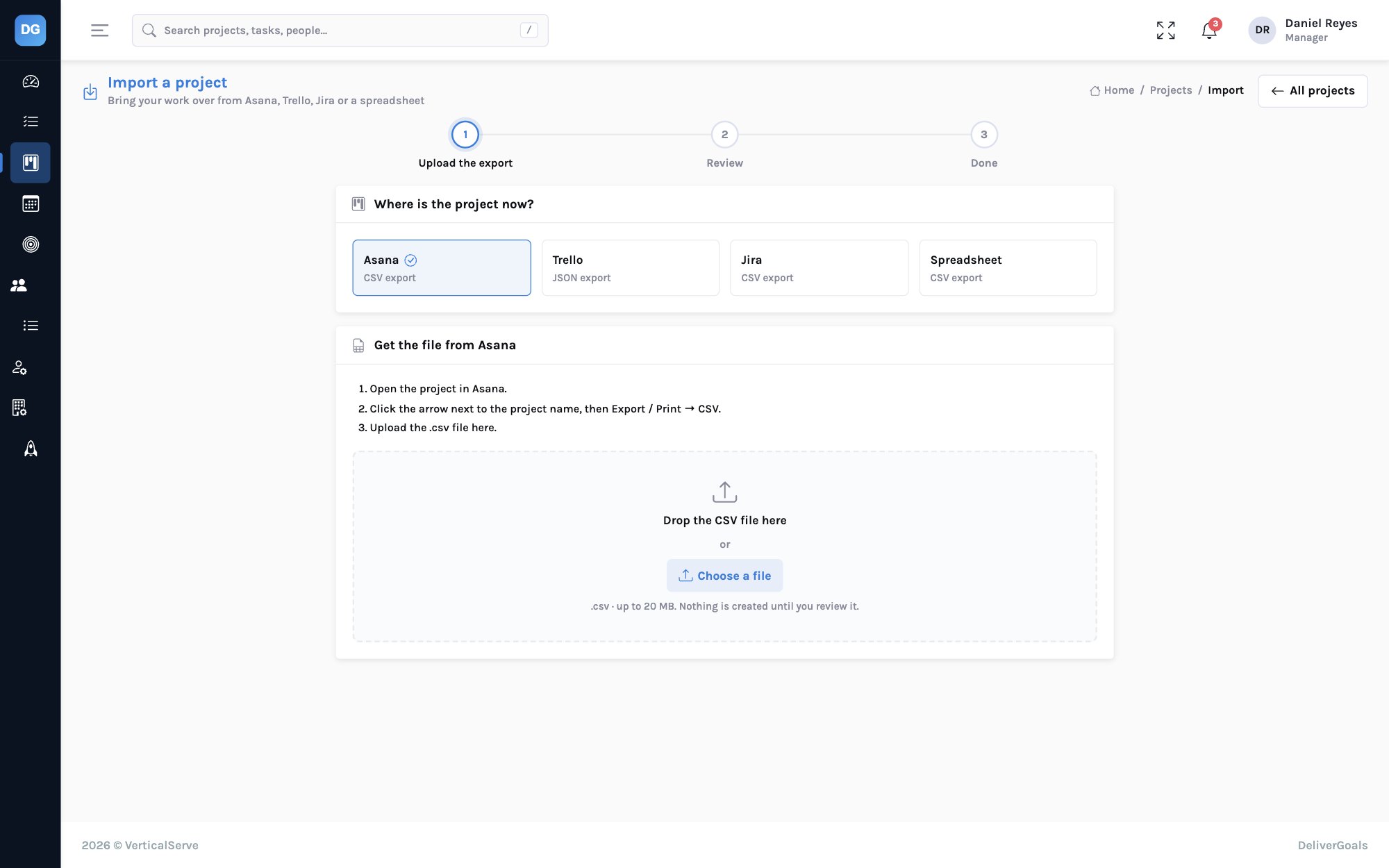
The importer never writes anything until you press Import. Upload a file and you get a draft: the counts, the columns in board order, the labels, the first 25 tasks and the people it found. You can discard the draft, and it is deleted after a day if you do nothing.
The week, day by day
- MondayInventory: decide what moves
List every project in the old tool. Move the active ones. Leave finished and abandoned projects where they are and keep their exports as an archive. A migration is a good moment to stop carrying dead work.
- TuesdayInvite people first
Invite everyone into the DeliverGoals workspace before you import anything. The importer matches people by email address, then by name when only one colleague has that name. Someone who has not joined yet cannot be matched, and their tasks arrive unassigned.
- WednesdayPilot one project end to end
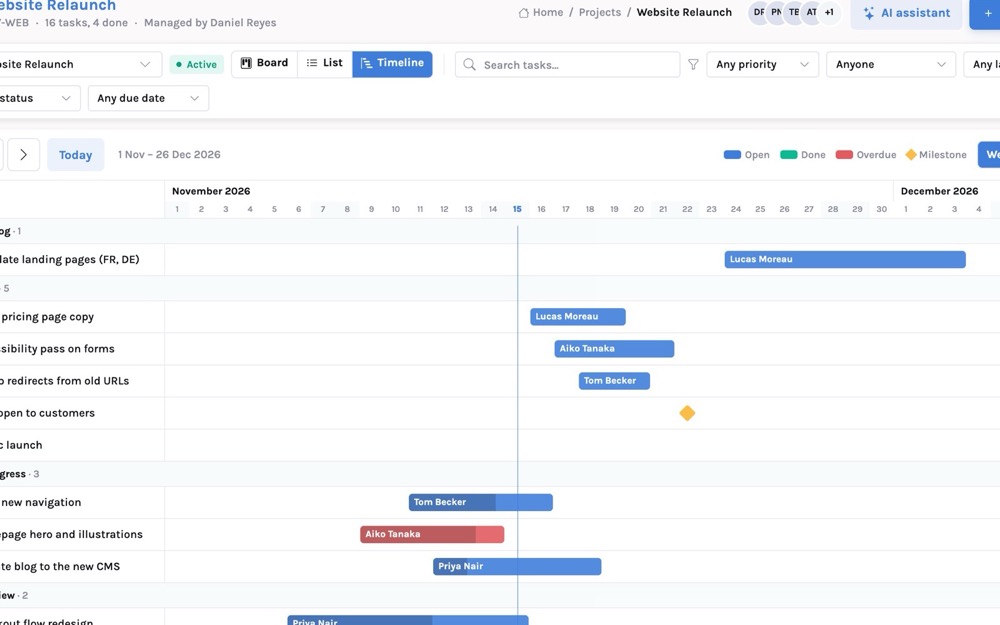
Pick a project with real dates and several people. Import it, then open the board, the timeline and My tasks as one of its members. Check the columns, the owners, the dates and the checklists against the old tool.
- ThursdayImport the rest
Import the remaining active projects. Assign any unmatched work from each board’s list view. Set up goals and link them to the projects that deliver them.
- FridayCut over
Stand-ups start in DeliverGoals. The old projects go read-only. From now on the board is the only place a task can change.
Why invitations come before imports
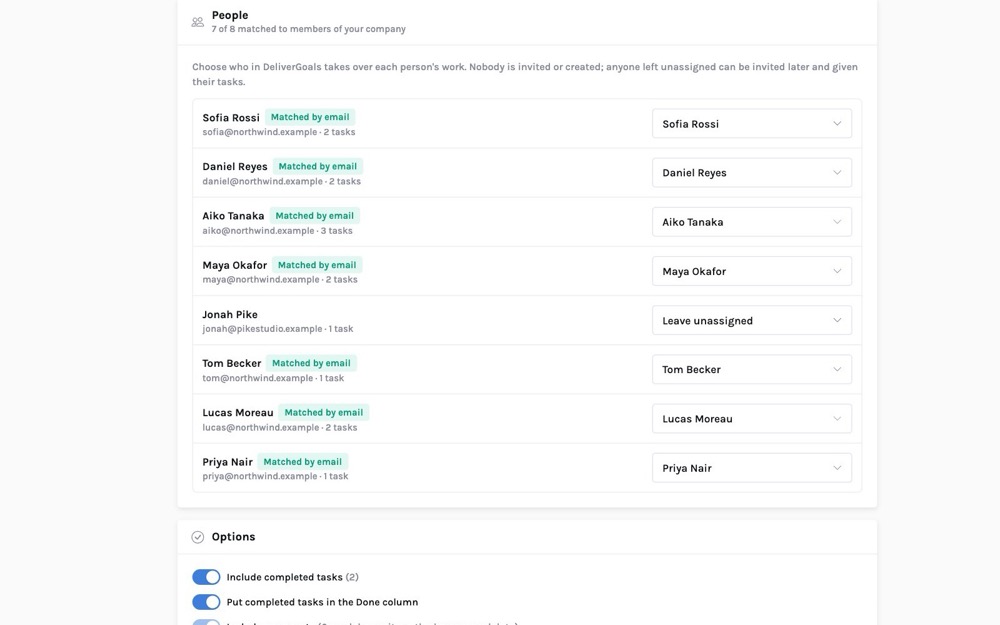
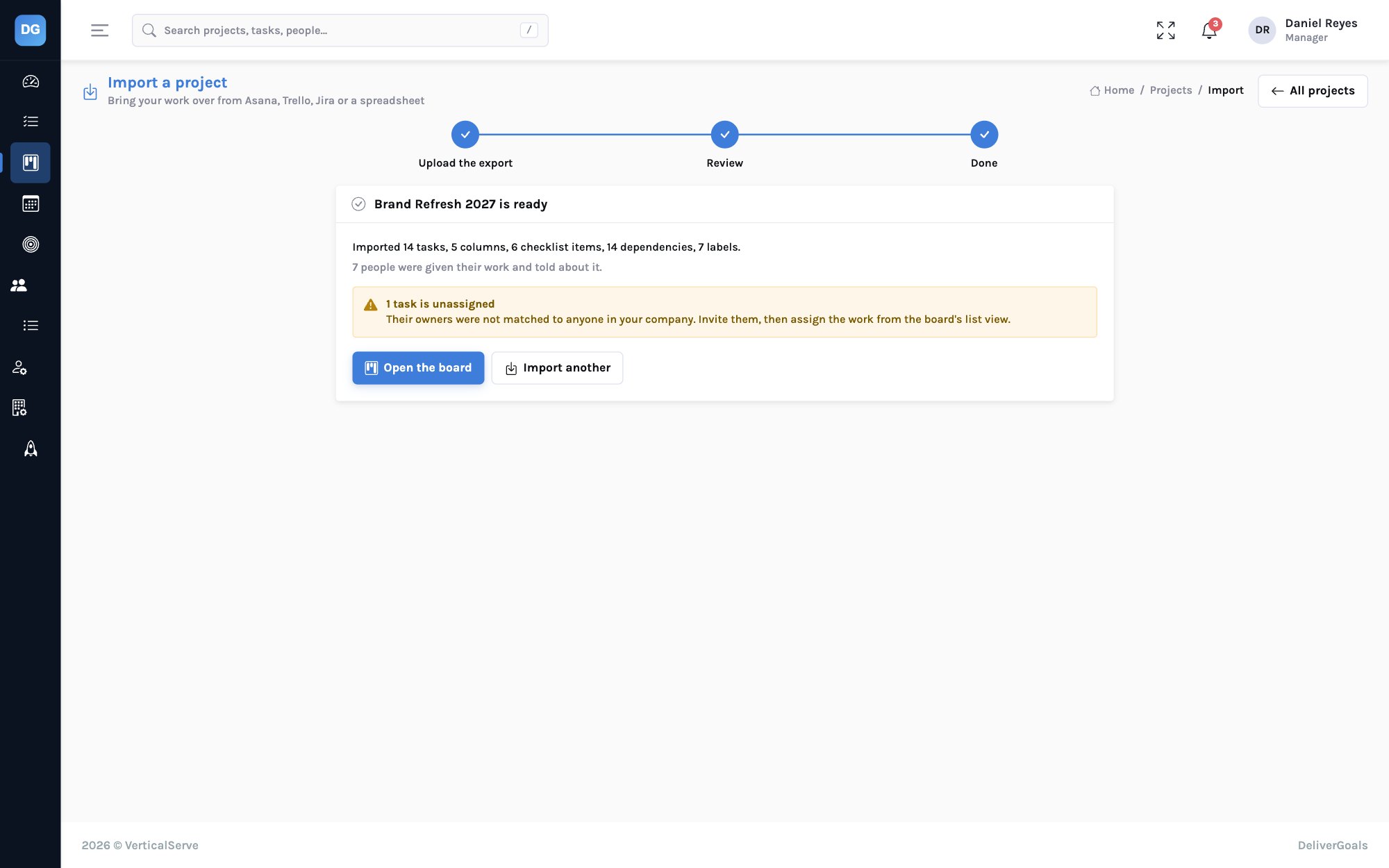
This ordering matters more than anything else in the plan. When Daniel uploads the Asana export of Brand Refresh 2027, the review shows eight people. Seven already have DeliverGoals accounts with the same email addresses they used in Asana, so the importer matches all seven. The eighth, Jonah Pike, is an outside freelancer who was never invited. His one task will arrive with no owner, and the review says so before anything is created.
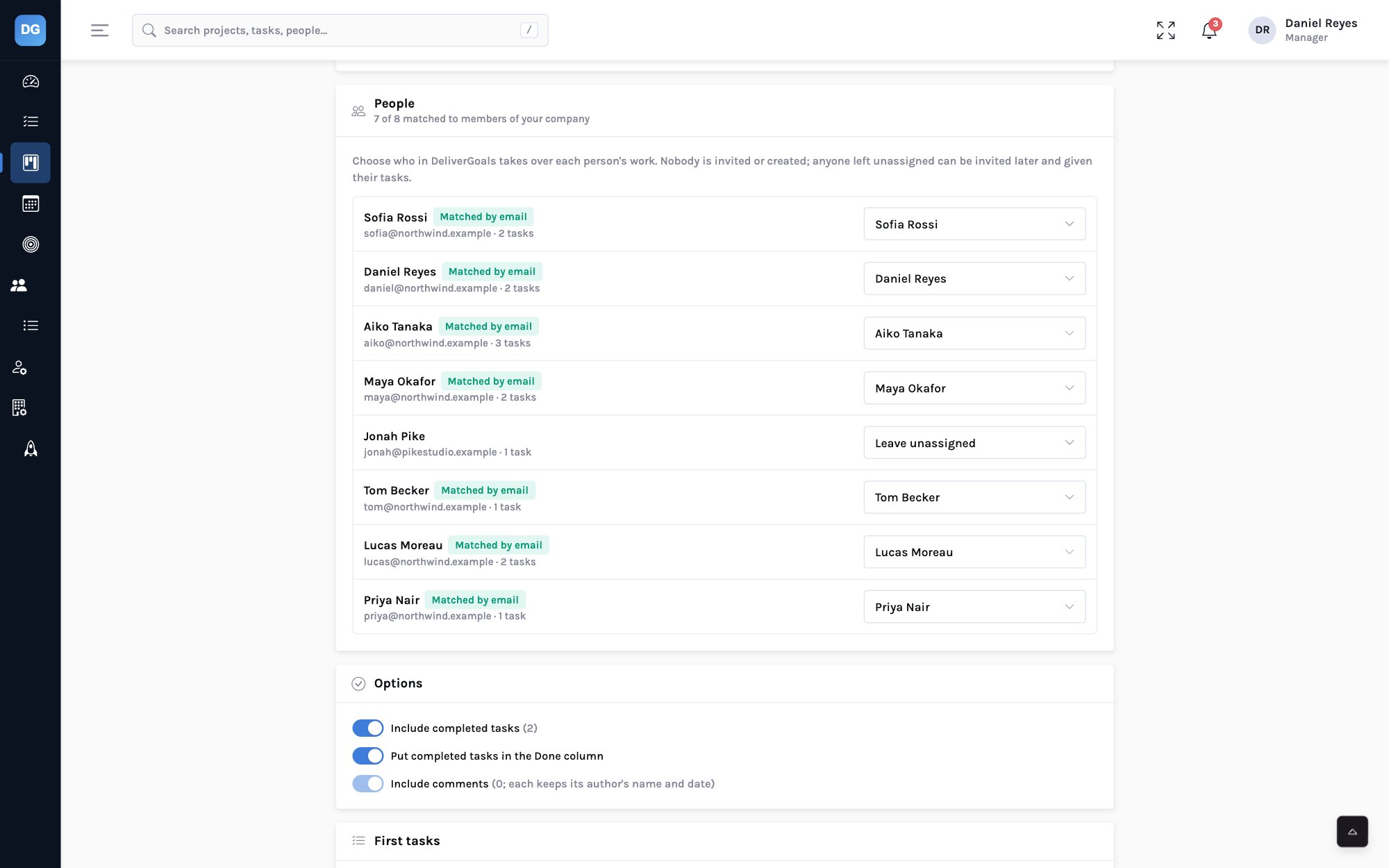
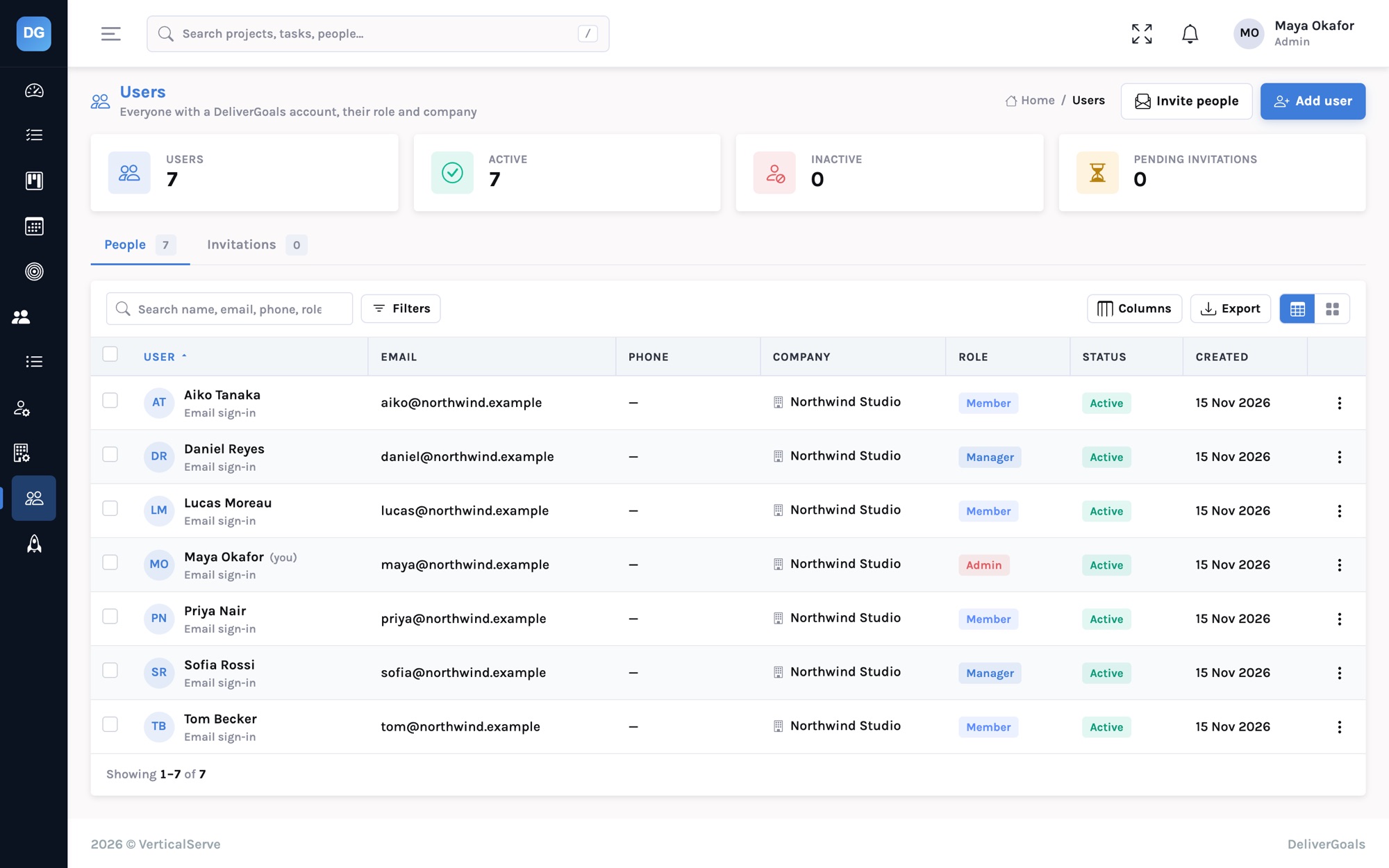
Nobody is invited or created by an import. That is deliberate: an export file can name anyone, and a migration should not quietly give a stranger access to your workspace. If you want Jonah on the project, invite him from the Users page and give him the task afterwards.
What moves, and what does not
Every tool exports a little differently, and no export carries everything. The table is the honest version; the review screen tells you the same things for your actual file.
| Asana (CSV) | Trello (JSON) | Jira (CSV) | Spreadsheet (CSV) | |
|---|---|---|---|---|
| Columns | From sections | From open lists, in board order | From statuses, to do → done | From a Status or Column column |
| Owners, dates, priority | Yes, incl. a Priority field | First member; start and due; priority labels | Assignee, start, due, priority | When the columns exist |
| Labels | From tags | From labels | Labels, epic name, issue type | From Tags or Labels |
| Subtasks / checklists | Subtasks become a checklist | Checklists | Sub-tasks become a checklist | Via a Parent column |
| Dependencies | Blocked By | Not in the export | Blocks links | Via a Blocked by column |
| Comments | Not in Asana’s CSV | With author and date | With author and date | No |
| Attachments | No | Counted, not copied | No | No |
| Sprints | — | — | Not carried; status and dates kept | — |
| Automations, rules, custom fields | No | No | No (story points are kept) | No |
Archived Trello cards and lists are left out and counted. Very large exports are capped at 5,000 tasks per file; export one project at a time and that is rarely a problem.
The admin’s checklists
Before the week
- One owner for the whole migration, with the authority to say “the old board is read-only on Friday”.
- A list of active projects, each with the person who knows it best.
- A DeliverGoals workspace. A new one starts with a 14-day trial for up to 10 people, which is enough for a pilot and a small team’s full move.
For each project
- Export it from the old tool and upload it on the import page.
- Read the warnings: attachments not copied, sprints not carried, rows left out.
- Check the people list. Anyone left unassigned should be invited, or their work given to someone.
- Decide: a new project, or add to an existing one you manage. Same-named columns and labels are reused when you add to an existing project.
- Import, then open the board and the timeline.
On Friday
- Make the old projects read-only (or archive them) in the old tool.
- Keep every export file. They are your archive of the old tool’s state on the day you moved.
- Post the first stand-up in DeliverGoals as the manager, so the team sees where the day’s updates now go.
Risks, and how to handle them
| Risk | What happens | What to do |
|---|---|---|
| People not invited yet | Their tasks arrive unassigned | Invite first; or assign later from the list view |
| Importing the same file twice | Each upload is imported at most once, but two uploads of one file make two copies | Upload once per project; use “add to an existing project” only on purpose |
| A very large export | Files over 20 MB or 5,000 tasks are refused or capped | Export one project at a time |
| Comments and history | Comments arrive with their author’s name and date, posted by the person importing; Asana’s CSV has none | Keep the export as the record of older discussion |
| Two boards for a week | People update the old one out of habit | Make the old project read-only on cut-over day |
What the importer does not do
It reads a file once. There is no live sync with Asana, Trello or Jira, and no import through their APIs, so changes made in the old tool after the export do not follow. It does not copy attachments or recreate automations. DeliverGoals does not send email notifications; people see assignments in the app’s notification bell.
The point of a deadline
A week sounds short. It is meant to. The data part of a migration takes an afternoon; what takes months is the period where nobody has decided. Put a date on the cut-over, make the old tool read-only on that date, and the team will follow the board.
For the details of each tool’s export, see moving from Asana, moving from Trello, moving from Jira and from spreadsheets to a board. The importer itself is described on Import & migration.