The daily stand-up was meant to take fifteen minutes on your feet. In a team that works across clients and time zones it has usually become a half-hour video call in which each person reports to the manager while the others wait. Most of what is said could have been read. The part that could not, the two people who are stuck, gets the last three minutes.
A written stand-up turns that around. Everyone writes three lines when their day starts. The manager reads them all in a few minutes and spends the saved time on the people who need help. DeliverGoals has this built in. The example below is the Northwind Studio demo workspace; the studio and its people are fictional.
What a person posts
A stand-up update has three parts, and they are the classic three:
| Field | What goes in it | A good example |
|---|---|---|
| Yesterday | What you finished or moved | Hero illustrations v3 delivered |
| Today | What you will work on | Second round of feedback on the hero, then accessibility pass on forms |
| Blockers | What is stopping you, or nothing | Waiting on final pricing copy |
Three more fields are optional: hours, mood and workload. Use them if your team finds them useful and leave them out if not; the board says plainly that mood and workload are optional. The hours field is a note on the update. It is not time tracking, and DeliverGoals has no timesheets.
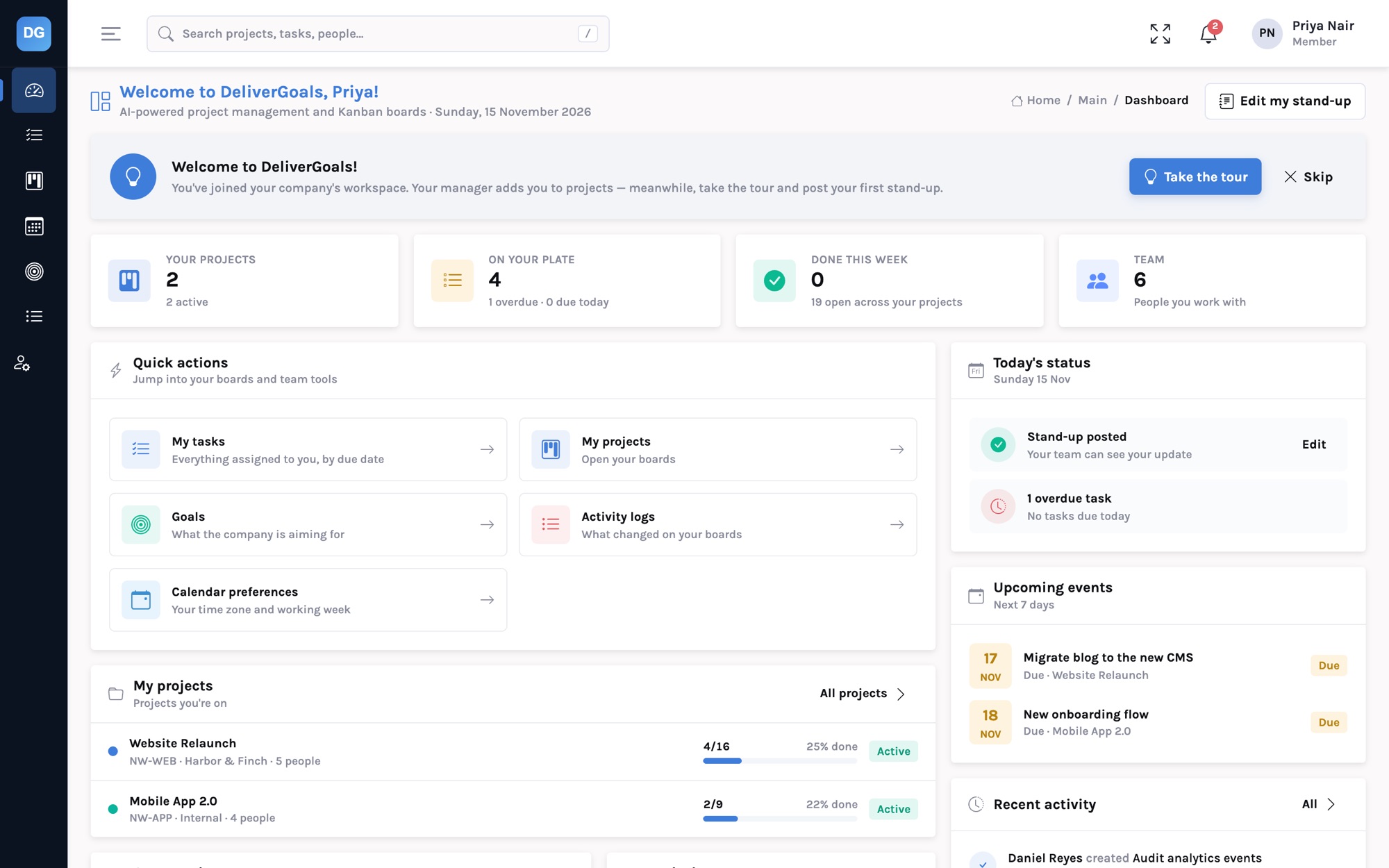
A member sees whether they have posted on their own dashboard, under Today’s status, with a button to write or edit the update.
Writing an update worth reading
- Name the task. “Worked on the website” tells nobody anything. “Checkout flow redesign is in review” does.
- One line each. If Yesterday needs a paragraph, it belongs in a comment on the task.
- Write the blocker as a request. “Waiting on final pricing copy” tells the manager exactly what to chase.
- “No blockers” is a fine answer. Most days it is the true one.
What the manager sees
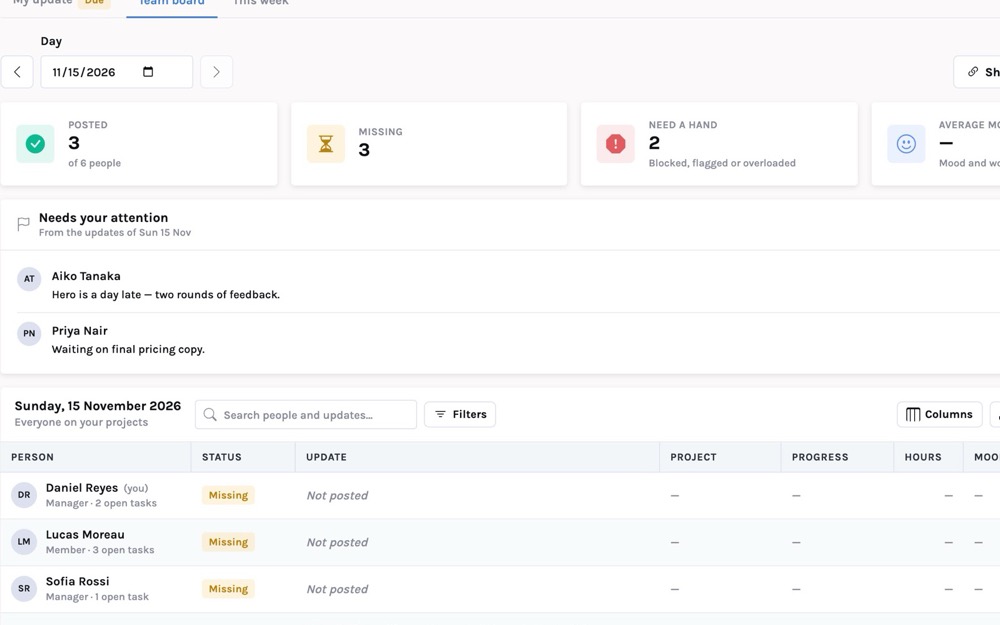
The Team board is the manager’s page. For the chosen day it counts three things: how many people have posted, how many are missing, and how many need a hand.
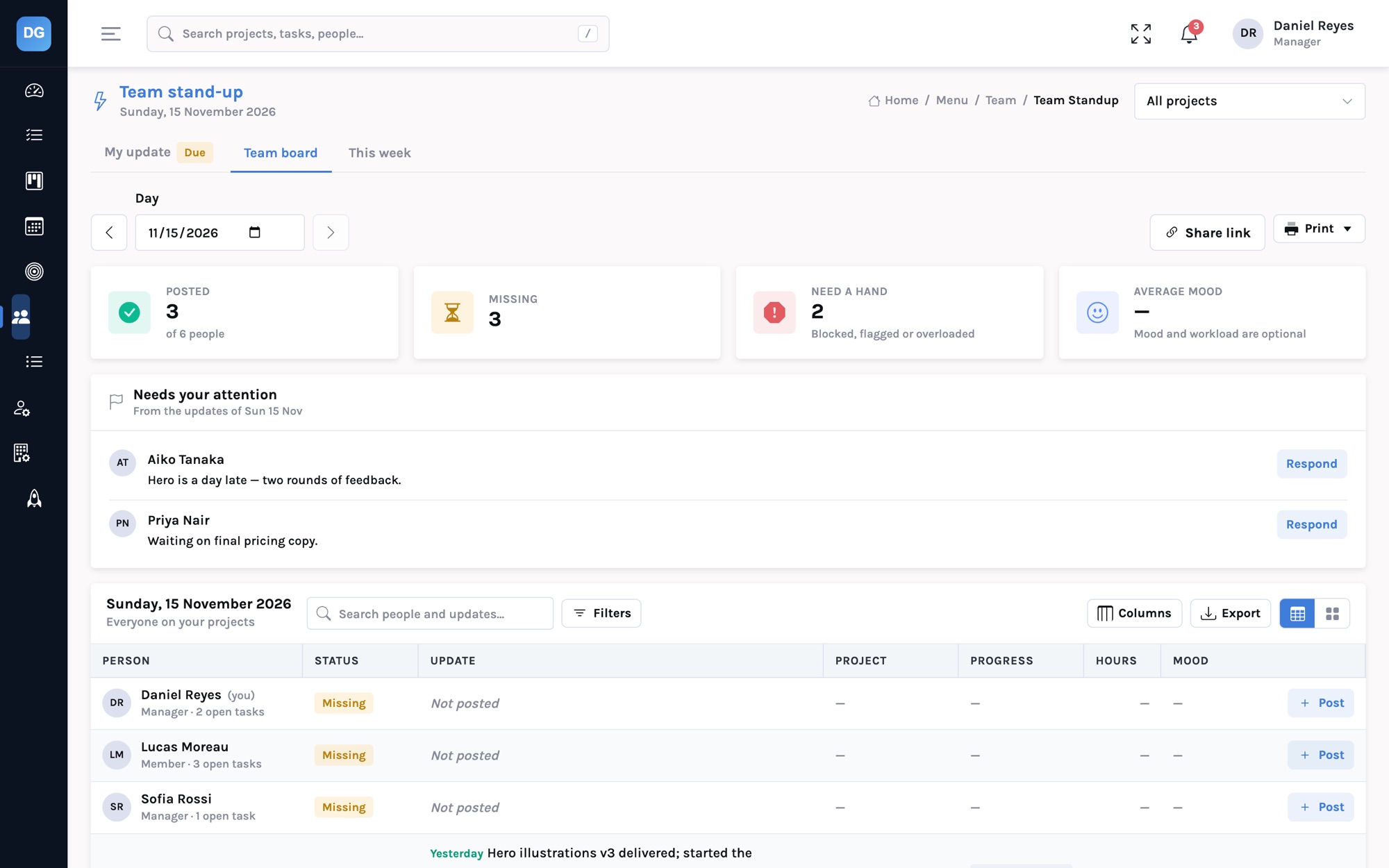
“Need a hand” is the part that earns its keep. It gathers the people who are blocked, flagged or overloaded and puts their words at the top under Needs your attention, each with a Respond button. In the demo there are two:
- Aiko Tanaka: “Hero is a day late — two rounds of feedback.”
- Priya Nair: “Waiting on final pricing copy.”
Those two lines are the whole agenda. The second one names a dependency between two people on the same project: Priya is waiting for copy that Lucas is due to write by the 19th. A manager who reads that at nine can fix it by ten.
Below, a table lists everyone on your projects with their status, their update, the project, progress, hours and mood, and a Post button on the rows that are still missing. A project filter narrows the board to one project.
The ten minutes
- Start of dayEach person posts
Three lines, about two minutes each, whenever their day begins.
- Minute 0Open the Team board
Read the three counts. If half the team is missing, that is the first thing to deal with.
- Minutes 1 to 4Needs your attention
Read each blocker. Use Respond, or go to the task and fix the cause: reassign, re-date, or ask the person who holds the answer.
- Minutes 5 to 8Skim the rest
Read the other updates in the table. Look for a Today that does not match what the board says is urgent.
- Minutes 9 to 10Share, if you share
Create a share link for the client, or move on.
If a conversation is needed, have it with the two people concerned and not with the whole team.
Everyone reports in turn. Blockers come up late and are discussed in front of people they do not concern. Whoever is in another time zone misses it.
People post when their day starts. The manager reads all of them, starts with the blockers, and talks only to the people who need it.
The weekly view
The This week tab shows the week’s updates together. It is useful on Friday for two questions: who posted every day, and which blockers were raised more than once. A blocker that appears on Monday and again on Thursday was not dealt with.
Sharing one day with a client
Clients ask for status. The usual answer is a summary email that someone writes by copying the stand-up. DeliverGoals has a shorter route: the Share link button on the Team board creates a link to that day’s stand-up that someone without an account can read.
Three properties make this safe enough to use routinely: the link covers one day, it expires, and it can be revoked. Read the day before you share it. A stand-up written for colleagues can be blunter than one written for a client, and once the team knows a day may be shared they tend to write more carefully, which is no bad thing.
What the stand-up does not do
DeliverGoals emails notifications and a daily digest and can post task updates to Slack or Teams, but it sends no reminder to post a stand-up, so nobody is nudged to post, and the client is not sent the share link automatically: you send it yourself (or invite the client as a guest on the project). If people forget, the Missing count is how you find out.
Getting a team to keep it up
- Post your own first. In the demo the manager is among the missing. A team notices.
- Answer every blocker the same day. People stop writing blockers that nobody reads.
- Cancel the call. If the written stand-up is added on top of the meeting, it is extra work and will be dropped. Replace the meeting, and keep one short call a week for discussion.
- Do not grade it. The Missing count is for a nudge, not a league table.
The Team board, the weekly view and the reports that sit beside them are described on the Stand-ups & reports page. For what a manager does with the rest of the numbers, see a manager’s Monday.