When you put client work into a web app, you are trusting it with two things: that people in other companies cannot see your boards, and that people in your own company see only what they should. This post explains how DeliverGoals handles both, in plain language.
One thing first. DeliverGoals holds no SOC 2 or ISO certification, and we do not claim compliance with any particular regulation. What follows is a description of what the product does, so you can judge it for yourself. The example workspace is Northwind Studio, which is fictional.
Two boundaries: the company and the project
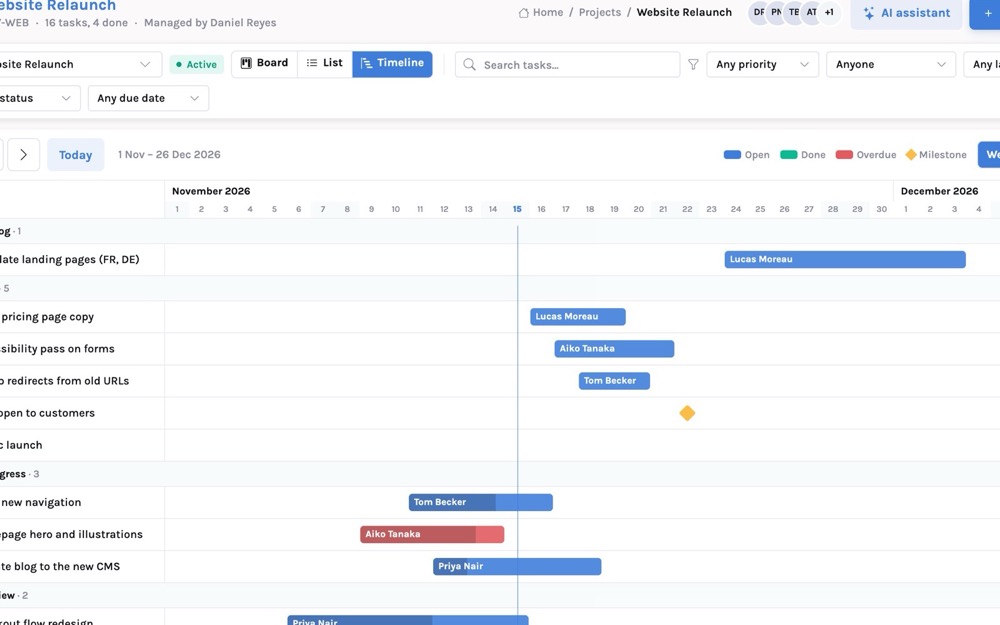
Everything in DeliverGoals belongs to a company workspace. Northwind Studio’s projects, tasks, goals, stand-ups and people are isolated from every other company’s. Inside the company there is a second boundary: the project. People are members of specific projects, and membership decides which boards they see.
The important word is every. The checks are not made once at sign-in and then assumed. Every request the app makes, to open a board, read a task, download a file or post a comment, is checked against the company and the project membership of the person making it.
Three roles
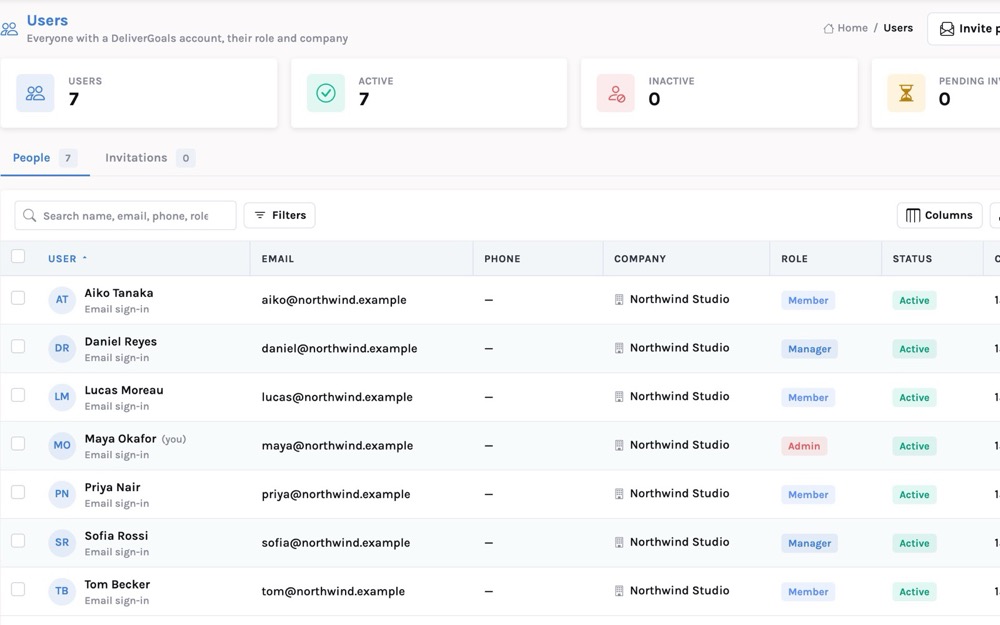
Each person has one role in the workspace: admin, manager or member. In the demo, Maya Okafor is the admin, Daniel Reyes and Sofia Rossi are managers, and four people are members.
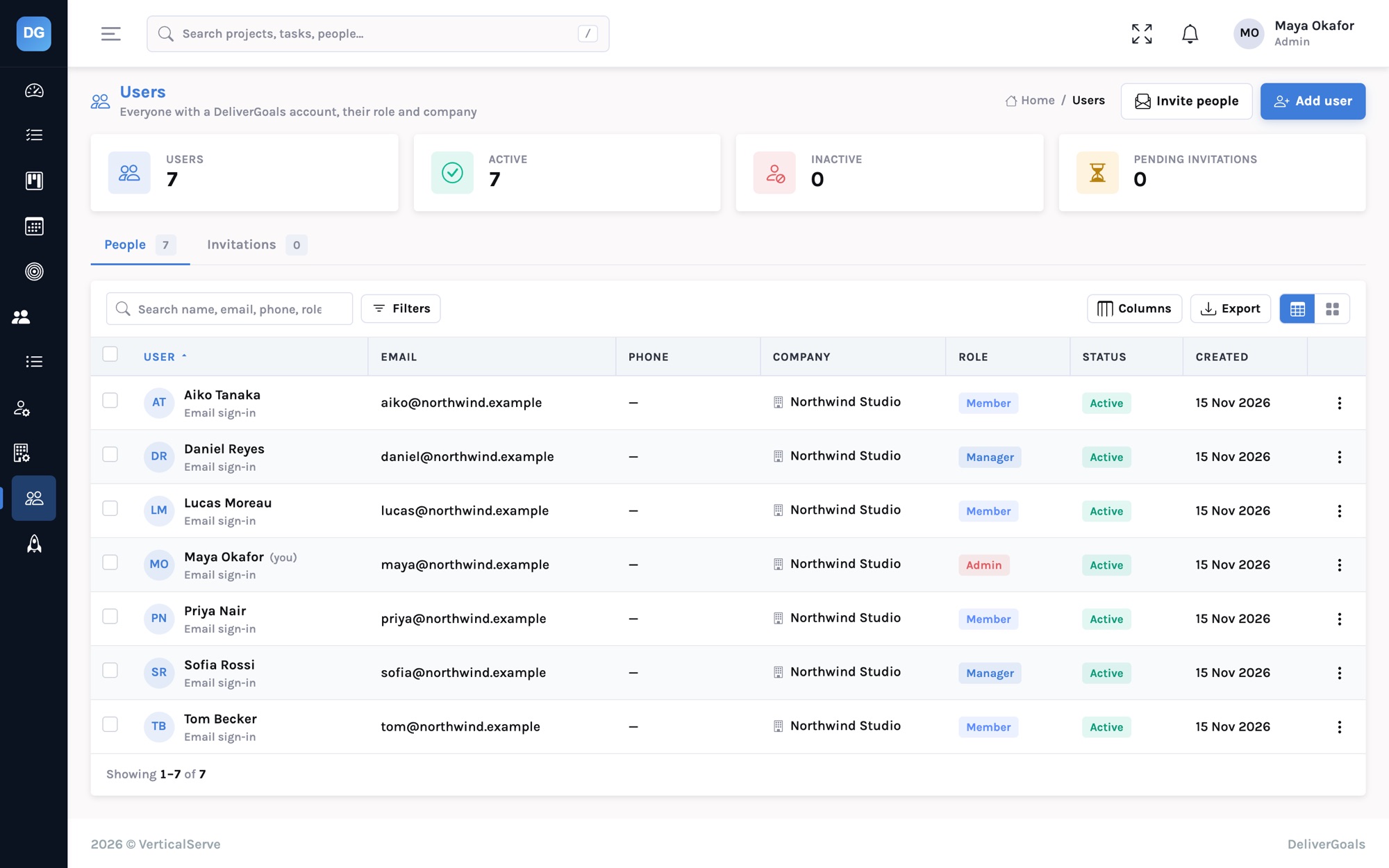
You can see the difference between roles in the screens themselves. Priya Nair, a member, has a shorter menu than Daniel, a manager, and the Users page above is something Maya sees as the admin. The role is the coarse control; project membership is the fine one. A sensible way to assign them:
| Role | Give it to | Keep the number |
|---|---|---|
| Admin | Whoever looks after the workspace: people, invitations, company settings | Small. One or two |
| Manager | People who run projects and need the team’s view | As many as you have project leads |
| Member | Everyone else | Most of the team |
Getting in: invitations
New people are invited by email address, and each invitation has its own personal invitation link. The person opens their link and joins the company workspace it was issued for.
The Users page shows how many invitations are pending, so an admin can see who has not yet accepted. After someone joins, add them to the projects they will work on. Until then they are in the company but on no boards.
Signing in, and staying signed in
People sign in with Google, or with an email address and a password.
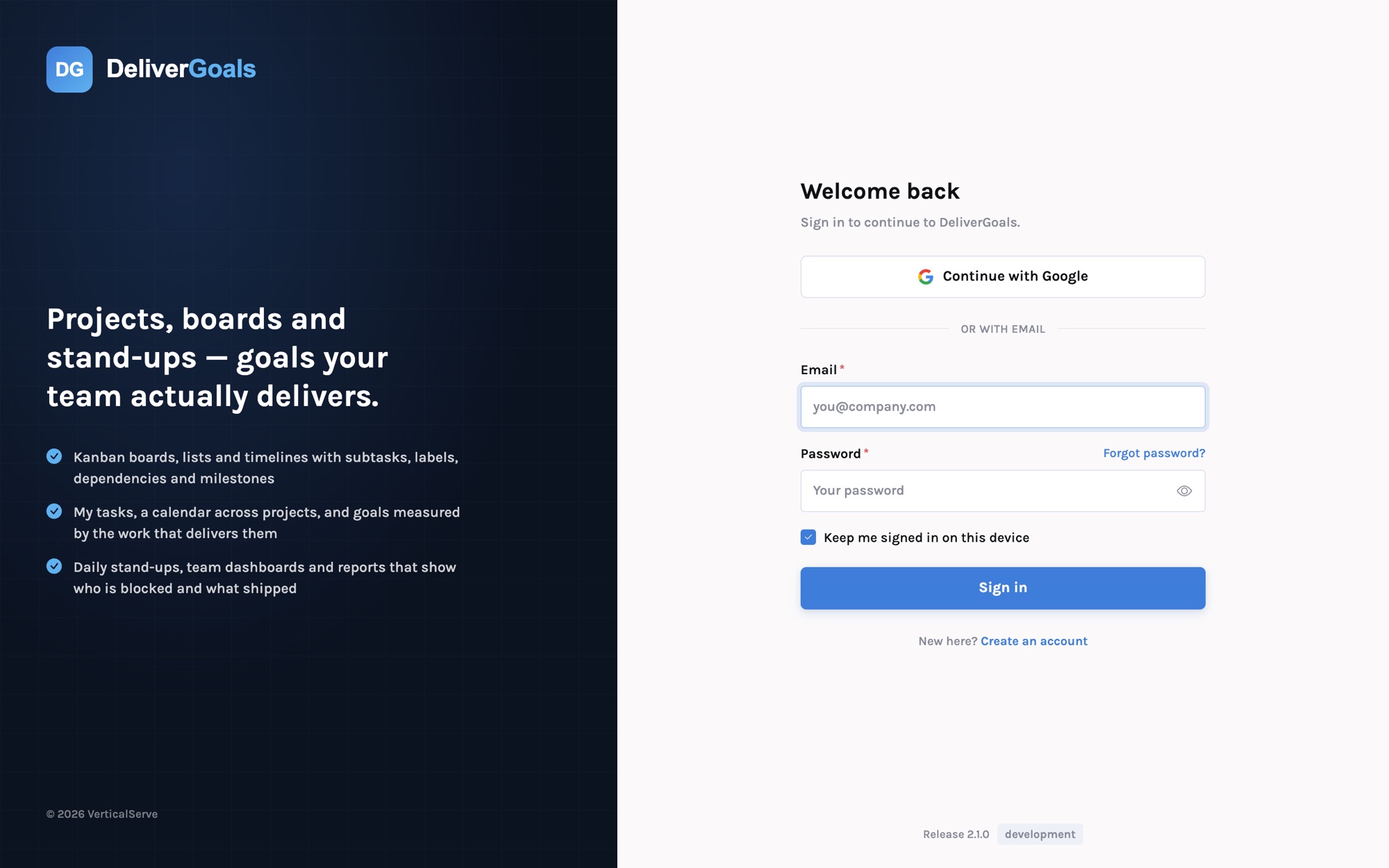
Around that sign-in there are four protections:
| Protection | What it does | What it is for |
|---|---|---|
| Password policy | A password has to meet minimum rules | Stops the weakest passwords |
| Account lockout | Repeated failed attempts lock the account | Stops someone guessing one person’s password |
| Rate limiting on sign-in | Sign-in attempts are limited | Stops automated guessing across many accounts |
| Sign out everywhere | Ends your sessions on all devices | For a lost laptop or a shared computer |
Once you are in, the app does not keep sending your password. It holds a short-lived signed access token, which proves who you are for a short time, and a refresh token that is used to get the next one. The refresh token rotates: each time it is used it is replaced, so a copied token is of limited use. Short-lived means that a token someone managed to copy stops working soon.
Files
Tasks can have attachments, and attachments are a classic way for something unwanted to get in. DeliverGoals does three things:
- Type-checked. A file’s type is checked when it is uploaded.
- Size-checked. A file can be up to 25 MB.
- Always served as a download. An attachment is handed to your browser as a file to save, never as a page to display. A file dressed up as a web page is saved, not displayed by DeliverGoals.
And because attachments belong to tasks, the same company and project checks apply to them as to the tasks themselves.
Limits on requests
Beyond sign-in, there are limits on how many requests one person and one network address can make. The purpose is ordinary: a script that hammers the service, by mistake or on purpose, is slowed down before it affects anyone else. The AI assistant has its own rate limit for the same reason.
All traffic is over HTTPS, and the app sets security headers that tell the browser to behave strictly.
Two deliberate openings: share links and guests
One feature is designed to let someone without an account read something: a stand-up share link, created so that a client, for example, can read one day’s stand-up. It is narrow by design. It shows one day, it expires, and it can be revoked. It is the kind of link you should treat like the document it points to: send it to the person it is for.
When a client needs more than one day’s update, a project manager can invite them as a guest. A guest has an account but sees only the projects they were invited to: they can read the board, comment, add files and complete tasks assigned to them. Everything else answers “no” by default, including any screen added later. Guests do not use a seat.
What DeliverGoals does not have
No SSO or SAML: sign-in is Google or email and password, with optional or company-required two-factor sign-in for passwords. API keys and webhooks exist, but no SCIM provisioning. No self-hosting: the service is run by VerticalServe. No SOC 2, ISO or similar certification. If any of these is a requirement for you, DeliverGoals does not meet it today.
What you can do on your side
- Keep admins few. One or two people.
- Add people to projects, not to everything. Membership is the control that keeps one client’s work away from people who do not need it.
- Clear out pending invitations. Look at the Invitations tab once a month.
- Deactivate leavers the day they leave.
- Use Google sign-in if your company already protects its Google accounts with its own second step; that protection then applies to how people reach DeliverGoals. For password accounts, turn on DeliverGoals’ own two-factor sign-in (see securing your workspace); Google-only accounts rely on Google’s verification.
- Revoke share links you no longer need.
The same list of measures, as a table, is on the People & security page, and the privacy policy covers what information is collected. If you have a security questionnaire, send it to contact@verticalserve.com and we will answer it against the product as it is.